 GYM BOSS

Help Digital waivers
Updated November 2026
New members can sign a waiver on a phone, tablet or computer, including a drawn signature. Every signed waiver is kept with the member, and you can print or download it as a PDF.
Set the wording
- Open Gym settings (under Settings in the sidebar). Only the gym owner can change this.
- Scroll to Waiver.
- Enter a Waiver title and Waiver text, or tap Start from the starter text and edit it.
- You can use {{member full name}} and {{gym name}} — these are filled in automatically when someone signs.
- Tap Save waiver. Each signature stores a copy of the text at the time they signed.
The starter text is a starting point, not legal advice. Check it suits your gym.
Collect a signature
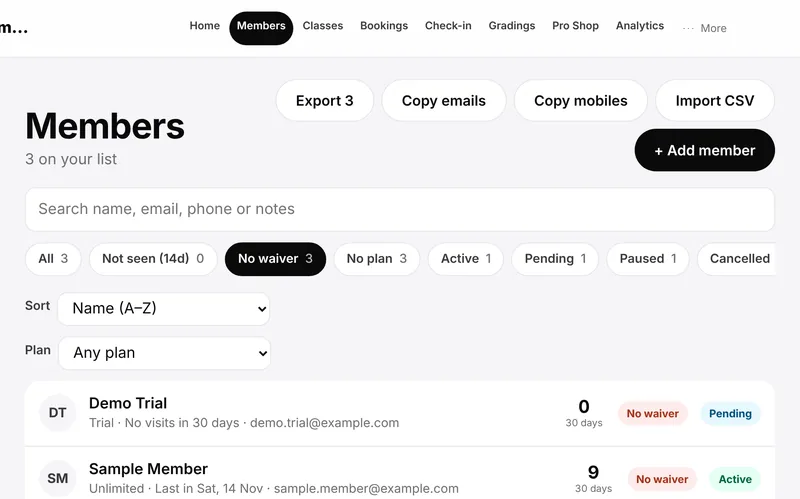
- Open the member from Members.
- To sign now, tap Sign waiver on screen (or Save and sign waiver on screen when adding someone new). They read the text and sign, then tap Sign waiver.
- To send a link instead, save the member first, then use the signing link on their page so they can sign on their own device.
- If they already signed on paper, tick Waiver signed (paper) and enter the date.
A digitally signed waiver shows as ✓ Waiver signed digitally. You can View signed waivers, Print or save as PDF, or Sign again (new copy) if you need a new version.
Related articles
Still stuck? Email hello@gymsoftware.io and tell us which screen you were on. We usually reply in a few hours.