 GYM BOSS

Help Add a member
Updated November 2026
Each person is added as their own member. There isn’t a family account on the Members list — a parent and a child are two member records. A family portal for parents is Now Testing. Juniors are marked with a date of birth or the Under 18 tick.
Add one member
- Open Members, then tap + Add member. You can also start from Home → + Add member.
- Enter First name and Last name.
- Enter Email and Mobile (both required).
- For juniors, add a Date of birth. If you don’t have a date of birth yet, tick Under 18. Under-18 members show a U18 tag on the list, and Emergency contact and Emergency phone are required.
- Set Status (for example Active).
- If you’ve already set up plans on Billing, choose a Plan. Otherwise type a Membership type, or leave it blank and add a plan later.
- Add an emergency contact and any notes staff should know (optional for adults).
- Tap Add member to save. To collect a waiver at the same time, tap Save and sign waiver on screen instead.
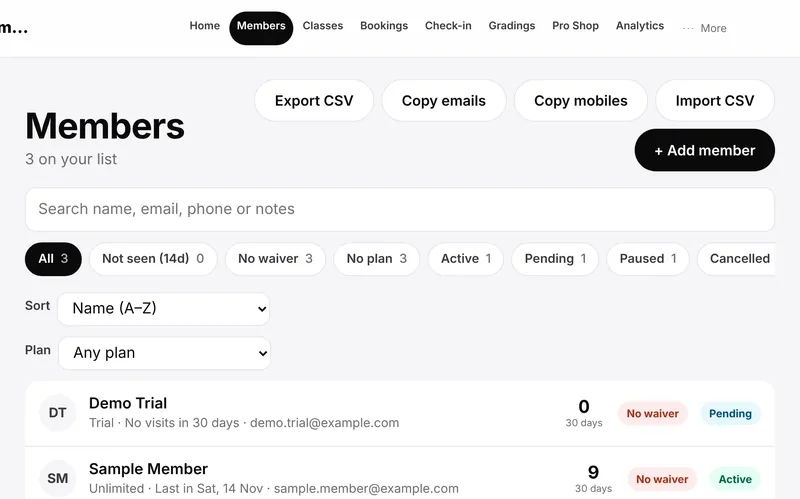
After they’re saved
Open the member again to edit details, sign or send a waiver, or (if you’re the gym owner) tap Set rank to record their belt and stripes.
The family portal for parents (Now Testing) does not replace adding each person as a member.
Related articles
Still stuck? Email hello@gymsoftware.io and tell us which screen you were on. We usually reply in a few hours.