 GYM BOSS

Help Check members in
Updated November 2026
Check-in is for today’s classes (Melbourne time). Pick the class, find the member, and tap Check in.
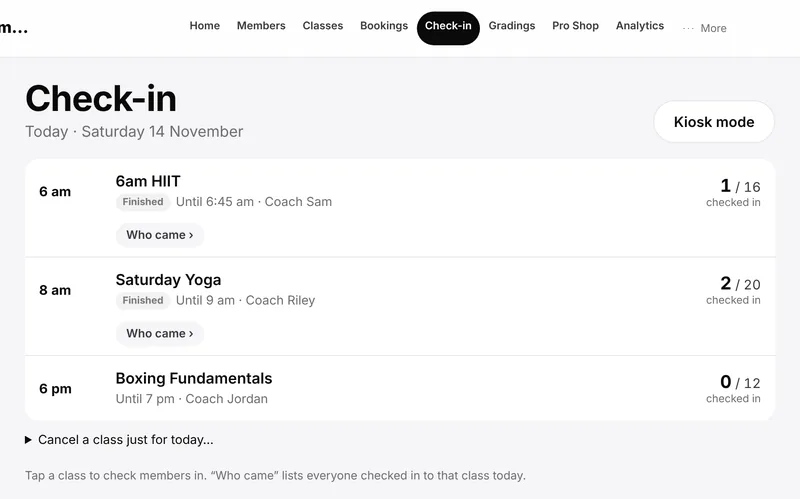
Check someone in
- Open Check-in. You’ll see today’s classes.
- Tap the class you want.
- Use Find member to search by name.
- Tap Check in next to the right person.
- If you tapped the wrong person, tap Undo. Undone check-ins are kept on the Staff page and on the member’s history.
People already in the class show under Checked in. If a class is over capacity you’ll see a warning. If a member has no waiver on file, you can tap Sign on screen from Check-in.
To cancel only today’s session of a class, use Cancel today on that class (this is the same idea as skipping a date on Classes).
For a front-desk tablet, see Kiosk check-in.
Related articles
Still stuck? Email hello@gymsoftware.io and tell us which screen you were on. We usually reply in a few hours.