 GYM BOSS
Help Add classes and run your timetable
Updated November 2026
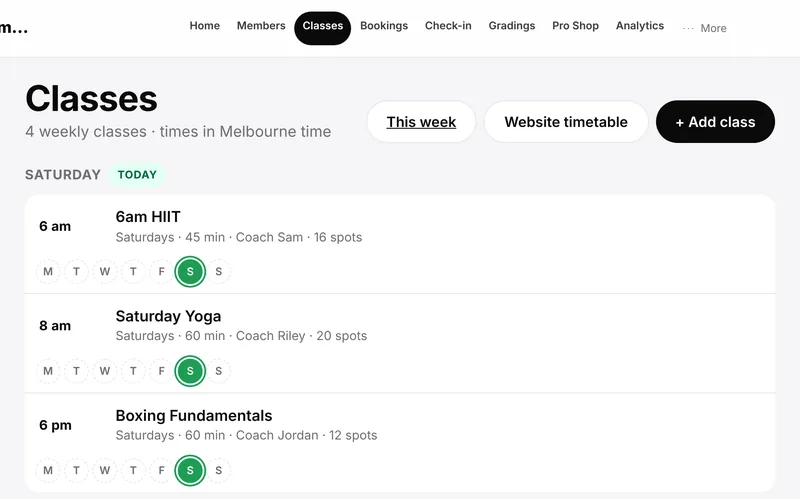
Classes repeat every week and show on the Check-in screen on the day they run. Times are Melbourne time.
Add a class
- Open Classes and tap + Add class.
- Enter the Class name (for example 6am HIIT).
- Pick the Days (every week). Tap more than one day to create a class for each day, with the same time and details.
- Set Start time and Length (minutes). Add a Coach and Capacity if you like (capacity can be left as no limit).
- Tap Add class, or Add N classes if you picked several days.
Use This week for a week view, and the day letters on a class row to add or edit the same class on other days.
Skip one session
- Open the class and use Skip a date (just that session).
- Tap the date to cancel only that session (it shows a ✕). It won’t show on Check-in, Kiosk or Home that day.
- Tap the date again to bring that session back.
Holiday dates follow Gym settings → Public holidays. Those closures are separate from your own one-off skips.
Cancel a class every week
To stop a class altogether, open it, tap Cancel this class…, then confirm with Cancel class. This cancels it every week, not just this week. Past check-ins are kept, and you can Bring this class back any time.
Related articles
Still stuck? Email hello@gymsoftware.io and tell us which screen you were on. We usually reply in a few hours.