 GYM BOSS

Help Add staff
Updated November 2026
Staff can see and edit members, classes and check-ins. Only the gym owner can open Staff and Billing, or change Gym settings. Tick Coach next to a staff member if they should award stripes and promotions. Starting ranks, transfers and ranking setup stay with the owner.
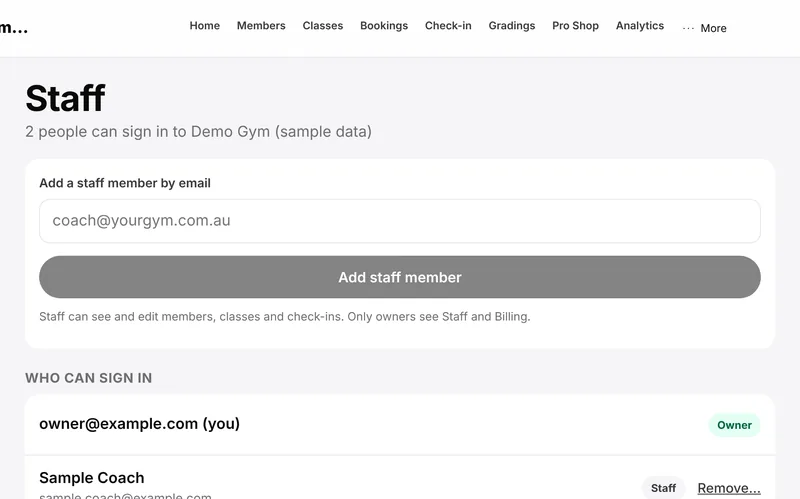
Add a staff member
- Open Staff (under Settings in the sidebar). Only the gym owner can do this.
- Under Add a staff member by email, enter their email (for example coach@yourgym.com.au).
- Tap Add staff member.
- If they will award stripes or promotions, tick Coach next to their name once they appear in the list.
If they already have a Gym Boss login, they’re linked straight away and can sign in.
If they don’t have a login yet, the Gym Boss team sends it:
- You’ll see a short email draft to hello@gymsoftware.io. Tap Open email (or Copy email).
- Send that request. We send them a login invite — usually the same day.
- When they accept, they’re linked to your gym as staff automatically. You can tap Check again on Waiting for a login if you think their login is already sent.
Remove someone
On Who can sign in, tap Remove… then Remove. They stop seeing your gym straight away. Their check-ins and edits are kept. Use Keep if you change your mind before confirming.
Related articles
Still stuck? Email hello@gymsoftware.io and tell us which screen you were on. We usually reply in a few hours.